USB-C to HDMI (2026): The Right Cable and How to Make It Work
Mounts, cables and seating
USB-C to HDMI is simple once you know the one spec that matters. Here are the adapter and two cables we reach for, how to confirm your device can output video, and the step-by-step fix when the screen stays black.
Our picks
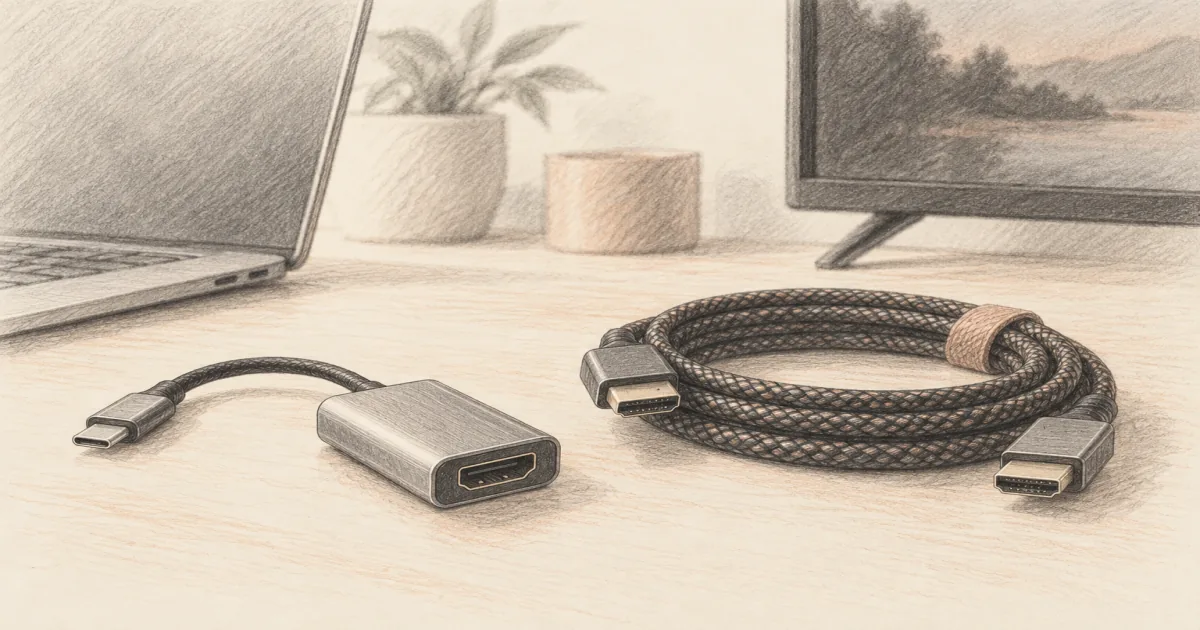
The best USB-C to HDMI adapter for most laptops is the Anker USB C to HDMI Adapter. It is a small aluminum dongle that turns one USB-C port into an HDMI port at 4K 60Hz, no drivers involved. If you would rather have a single cable, the Anker USB C to HDMI Cable is the sturdier run, and the Warrky USB C to HDMI Cable is the value pick that shops keep on the bench.
This pairs with the rest of a room build, and the setup guides for mounts, cables and seating cover the wider wiring picture. If you are also sorting out the cable behind the TV, our HDMI cable guide explains the bandwidth ratings in plain terms. And if the plan is a wall-mounted screen, the large TV mount guide handles the other half, while the HDMI splitter guide covers feeding two displays from one source.
Adapter or cable: which one do you need?
An adapter is the flexible choice. It is small, it works with any HDMI cable you already own, and when the cable gets damaged you replace a two dollar part instead of the whole thing. The downside is that it hangs off the port on a short leash, which adds strain if the laptop sits on a stand or a couch cushion.
A cable is the cleaner permanent choice. One piece runs from the laptop to the TV with no joint to come loose, and the connectors take the wear instead of the port. It is less flexible on length and it costs a little more, but for a desk that never moves, it is the better build.
If you travel, buy the adapter and keep one HDMI cable in the bag. If the setup stays put, buy the cable. Owning one of each is not a bad idea, and it costs less than a single streaming box.
Which one travels better?
The adapter is the better travel pick. It slides into a pocket, works with whatever HDMI cable the hotel or conference room provides, and costs less to replace if it is lost. A six foot cable takes more bag space for the same job.
Which one lasts longer on a desk?
The cable is the better pick when the setup never moves, because there is no joint hanging off the port to stress the connector. If the laptop moves around, the adapter protects the port instead, since the dongle takes the strain.
The best adapter: Anker USB C to HDMI
The Anker USB C to HDMI Adapter is the top pick because it does one job and does it without drama. Plug it into a USB-C port that supports video, add any HDMI cable, and the display wakes up. It supports 4K at 60Hz over DisplayPort Alt Mode, and it also plays with USB4 and Thunderbolt hosts.
The build is the reason to pay a little more than the no-name options. The aluminum body dissipates heat, and the reinforced braided tail resists the twists that kill a cheap dongle. The connector is snug without being a fight, which matters when you plug and unplug it every day.
The trade is the missing extras. There is no charging passthrough, so the laptop runs on battery while it mirrors, and there is no second USB port for a mouse. A few owners report that it warms up during long sessions. If you need power and data at the same time, a small hub is the right tool instead.
Does the adapter charge the laptop?
No. The Anker 310 carries video only, with no Power Delivery, so the USB-C port stays busy and the battery keeps draining. Pair it with a separate charger on a long travel day, or choose a hub with PD if charging matters.
Check the Anker USB C to HDMI Adapter on Amazon for the current price.
The best cable: Anker USB-C to HDMI 6ft
The Anker USB-C to HDMI Cable is the better choice when the setup is permanent. A single six foot cable runs from the laptop to the display with no adapter joint in the middle, which removes the most common failure point. It carries 4K at 60Hz with HDR, and the connectors are rated for thousands of plug cycles.
Shielding is the practical advantage. Tinned copper, double aluminum, and a TPE jacket keep the high-speed signal clean even when a power brick and a Wi-Fi router share the desk. That is the difference between a cable you forget about and one that flickers when the microwave runs.
The trade is the same as the adapter: video only. It will not charge the laptop, and it will not add USB ports. It also comes in a single length, so measure the run before you buy, because a too-short cable forces the laptop to sit somewhere awkward.
Why does shielding matter?
Shielding keeps a high-speed signal clean when a charger and a Wi-Fi router share the desk. The Anker cable uses tinned copper, dual-layer aluminum, and a TPE jacket, which is why it stays locked at 4K 60Hz instead of flickering under interference.
Check the Anker USB-C to HDMI Cable on Amazon for the current price.
Best value: Warrky USB-C to HDMI 6ft
The Warrky USB-C to HDMI Cable is the value pick and the one to keep as a spare. It handles 4K at 60Hz with HDR and steps back to 1440p and 1080p at high refresh rates, so it covers a gaming monitor as well as a TV. The connectors are gold-plated and the housing is aluminum, which is more than the price suggests.
The reason to buy it is the reputation. A hardware forum thread on USB-C to HDMI cables names the Warrky as the one a repair bench uses for diagnostics, which is the kind of long-term use that exposes a bad cable fast. Owners also run it to VR headsets and 4K TVs without issues.
The trade is the lack of extras and a stiff start. There is no charging passthrough, and the braided jacket takes a week to relax, which makes tight radius runs annoying at first. For the price, that is easy to live with, and it is why it is the pick to buy in pairs.
Is the cheap cable as stable as the Anker?
For a desk or a TV run, yes. It carries the same 4K 60Hz signal and gold-plated connectors, and the repair bench that names it uses it for diagnostics. The Anker adds better shielding and a higher plug-cycle rating, which matters more if the cable moves every day.
Check the Warrky USB-C to HDMI Cable on Amazon for the current price.
How to check your device supports video out
Look for the feature name, not the plug shape. The port must support DisplayPort Alt Mode, sometimes listed as DP Alt Mode, or be a Thunderbolt or USB4 port. USB-C is just the connector, and plenty of USB-C ports carry power and data only.
What is DisplayPort Alt Mode?
It is the USB-C feature that carries a video signal, sometimes listed as DP Alt Mode. A port without it moves power and data only, so no adapter can output a picture. Check the spec sheet before you buy.
Check the spec sheet or the port icons. A small DisplayPort or Thunderbolt symbol near the port is a good sign. On laptops, the manufacturer's spec page usually lists video output under the USB-C section. On phones, search the model number plus DisplayPort Alt Mode.
Then test with the cheapest thing you own. Plug the adapter into a TV you know works and select the right HDMI input. If nothing appears, try another port and another cable before you return the adapter. The fault is usually the port's video support, not the accessory.
USB-C to HDMI not working? Fix it in order
Start with the input. Most blank screens are the TV sitting on the wrong HDMI source. Cycle through the inputs, then re-seat both ends of every cable in the chain. A half-seated connector looks exactly like a broken adapter.
Why is the screen still black after a new cable?
The port likely has no video output, or the resolution is too high for the display. Lower the resolution, try a different USB-C port, then confirm the device lists DisplayPort Alt Mode. If it does not, the port cannot do it.
Check the resolution and refresh rate next. If the display cannot handle the mode the device is sending, the screen stays black or drops out. Lower the resolution in display settings, then raise it once the picture is stable. Long or old HDMI cables are a common limit at 4K 60Hz.
Test each part on its own. Move the adapter to a different USB-C port, then swap the HDMI cable, then try a second display. That isolates the failure in three steps instead of guessing. If the device is a phone, remember that some models limit mirroring to 1080p even when the hardware can do more.
Update the obvious software, then stop. A driver or OS update fixes some Windows handshake issues, and a restart fixes a surprising number. If none of it works and the device specs do not list video output, the port simply cannot do it, and no cable will change that.
Phone to TV: what works and what does not
Android phones are the easy case. Most recent flagship and midrange models with a USB-C port support video out, so the adapter mirrors the screen straight to the TV. Samsung phones add DeX, which turns the TV into a desktop with a mouse and keyboard, and it works well with a plain adapter.
USB-C iPhones work as well. The adapter carries video and audio to the TV, and the phone screen can stay off if you prefer. Older Lightning iPhones need a Lightning Digital AV Adapter instead, since the connector is different and passive cables will not do it.
Does an iPhone with USB-C work?
Yes. A USB-C iPhone sends video through the same adapter, and the phone screen can stay off. Older Lightning iPhones need the Lightning Digital AV Adapter instead, because the connector and the passive-cable rules are different.
The phones that will not work are the budget models with a charge-and-data USB-C port. That is not a defect, it is a cost cut, and it is worth checking before you buy. If your phone supports wireless casting, that is the fallback for streaming apps when the cable stays dark.
Common questions
Do I need a 4K cable for a 1080p TV? No, a standard High Speed HDMI cable is fine at 1080p. Buy the 4K-rated cable only if you have a 4K display or plan to upgrade, since it costs about the same and saves a second purchase later.
Will an adapter add lag? Not enough to notice for video or casual games. The signal path is short and digital. Competitive players should use a display's native input instead, but for movie night the adapter is invisible.
Can I run two screens from one USB-C port? Only with a hub that supports it, and the laptop has to support Multi-Stream Transport. A single adapter drives one display. For two, buy a dock and check the laptop's display output limit first.
Which end goes where? The USB-C end goes into the laptop, tablet, or phone, and the HDMI end goes into the TV, monitor, or projector. The cable is directional, so flipping it will not work, and neither will an HDMI source into a USB-C screen.
Frequently Asked Questions
Does USB-C to HDMI work?
Yes, as long as the USB-C port on your device sends video. That feature is called DisplayPort Alt Mode, and not every USB-C port has it. A port that only charges and moves data will not output a picture, no matter which adapter you plug in.
Can I connect my phone to a TV with USB-C to HDMI?
On many Android phones, yes, because they support video output over USB-C. Plug the adapter into the phone and an HDMI cable into the TV, then pick the right input. iPhones with USB-C work too, and some earlier iPhones need a Lightning adapter instead.
Why does HDMI to USB-C not work?
The conversion only runs one way. These adapters take a video signal from a USB-C host and hand it to an HDMI display, so plugging the HDMI end into a source and the USB-C end into a screen will not work. Buy an HDMI-to-USB-C capture device if that is what you need.
What are the common issues with USB-C to HDMI?
A port without video output, the wrong TV input selected, a resolution the display cannot handle, and a loose connector. The most frequent cause by far is the port itself. Check the device specs for DP Alt Mode before blaming the cable.
Do I need a special HDMI cable for 4K 60Hz?
Yes, use a High Speed or Premium High Speed HDMI cable for 4K at 60Hz. An old cable from a cable box may only carry 4K at 30Hz or 1080p. If the picture works but looks soft or choppy, swap the HDMI side first.
Will USB-C to HDMI charge my laptop at the same time?
Not on the adapters and cables here. They carry video only, so your USB-C port is busy and the battery still drains. If you need both, buy a hub with a PD charging port instead, and expect to spend a little more.
Why is my picture 1080p instead of 4K?
Usually the HDMI cable, the adapter, or the display is the limit. Confirm the display supports 4K at 60Hz, use a Premium High Speed HDMI cable, then set the resolution in your display settings. Some phones cap mirroring at 1080p even when the hardware can do more.
Does this work with a Nintendo Switch or Steam Deck?
The Steam Deck supports USB-C video out and works with these adapters. The Switch needs a dock for TV output, because its USB-C port does not output video directly. Check the device before you buy the cable.